> For the complete documentation index, see [llms.txt](https://docs.yansalabs.com/asset-tag-maker/llms.txt). Markdown versions of documentation pages are available by appending `.md` to page URLs; this page is available as [Markdown](https://docs.yansalabs.com/asset-tag-maker/technical-docs/building-a-label-template/creating-labels/label-designer.md).
# Label Designer
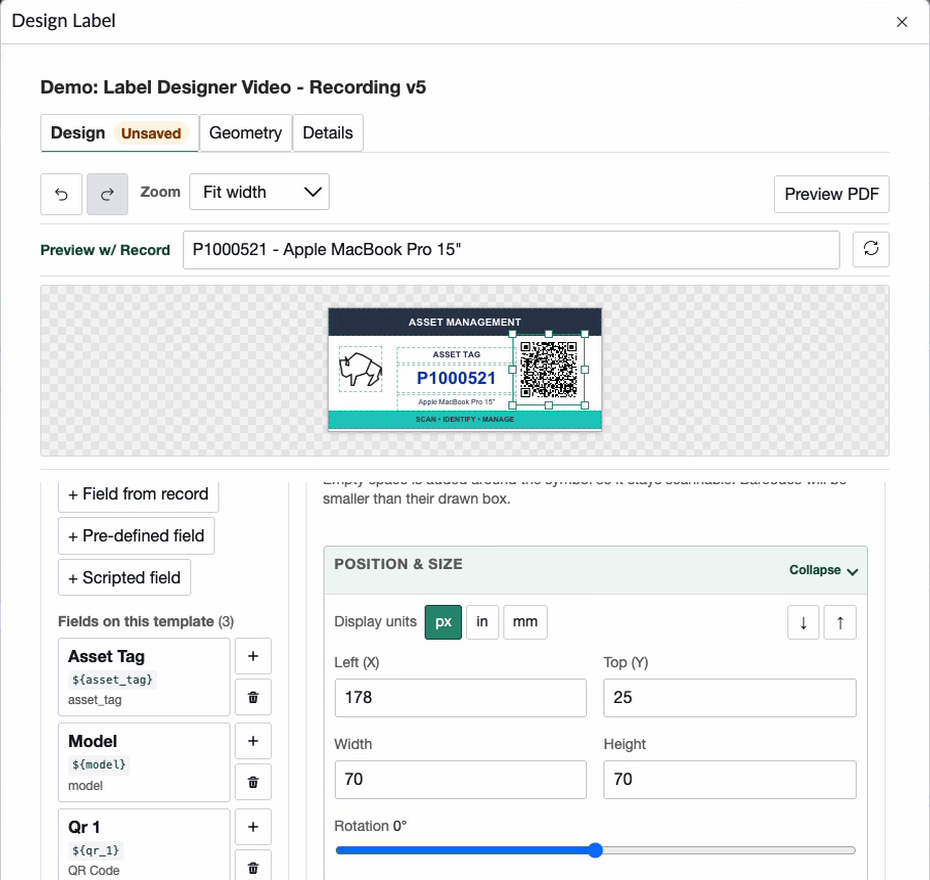
Label Designer is a point-and-click WYSIWYG workspace for building label templates directly in ServiceNow. Use it to arrange static text, ServiceNow data, images, barcodes, and QR codes on a visual canvas, then preview the finished label with real records before you save or print it.
Designing an asset label with live ServiceNow data
{% embed url="" %}
Label Designer demo
{% endembed %}
{% embed url="" %}
Asset Tag Maker - Advanced Asset Tag Designs
{% endembed %}
{% hint style="info" %}
You need the `x_yala_tagger.admin` role and write access to the Label Template to open Label Designer and create or update a design.
To view, insert, or edit images in a design, you also need the `image_admin` role.
{% endhint %}
## Open Label Designer
1. Open the **Label Template** you want to design.
2. Click **Design Label** in the form header.
3. Use the **Design**, **Geometry**, and **Details** tabs to build and verify the template.
## Design a label
The **Design** tab is the primary workspace. The canvas represents one label cell and shows each element in its printed position.
1. Add content from the **Add content** panel:
* **Text** for static content
* **Image** for artwork stored in the ServiceNow **Images** (`db_image`) table
* **QR code** or **Barcode** for scannable content
* **Field from record** for a value from the template's source table
* **Pre-defined field** for a reusable value such as a date or address
* **Scripted field** for a value returned by a server-side script
2. Select an element on the canvas to edit it. You can move, resize, rotate, and layer elements, or set exact position and size values in pixels, inches, or millimeters.
3. Use the selected element's controls to configure typography, alignment, color, fill, border, radius, and padding where applicable.
4. Search **Preview w/ Record** for a source record. Merge fields, barcodes, and QR codes resolve with that record's real values on the canvas.
5. Click **Preview PDF** to render the label through the PDF generation process. You can show label edges, inspect the result, and download the preview.
6. Click **Save label** when the canvas and PDF preview are correct.
Undo and redo are available while you work. Label Designer also warns about unsaved changes and keeps a local recovery draft when it can, helping protect work if the designer closes unexpectedly.
## Configure label geometry
The **Geometry** tab shows the Label Configuration used by the template. From here, you can:
* Switch the template to another Label Configuration
* Review the page size, margins, label size, labels per row, and rows per page
* Edit page dimensions, margins, row spacing, and ordered label or padding cells
* Display measurements in pixels, inches, or millimeters
{% hint style="warning" %}
A Label Configuration can be shared by multiple templates. Editing shared geometry changes how every template using that configuration prints. Label Designer identifies the affected templates and lets you copy the configuration first when you want a layout for this template only.
{% endhint %}
## Review template details
The **Details** tab provides reference information and diagnostics for the current design, including:
* Template, source table, mode, and access information
* Label Configuration dimensions and page layout
* The selected preview record
* Element and generated HTML counts
* Merge fields used by the template
* XML, label-node, and design-origin diagnostics
Use this tab when you need to confirm which records and configuration the design uses or investigate a warning.
## Work with an existing HTML template
For an existing **Single Cell/Label** template with hand-authored HTML, Label Designer can measure the current layout and convert supported content into editable elements. You review the conversion before it reaches the canvas, and nothing is written until you click **Save label** and confirm that the existing HTML should be replaced.
{% hint style="info" %}
**Entire Row** templates cannot be imported into Label Designer. Continue editing those templates through **Template HTML** on the Label Template record.
{% endhint %}
## Verify the finished label
Before using a template in a production label run:
1. Preview it with a representative source record.
2. Check that all dynamic values resolve and fit their boxes.
3. Open **Preview PDF** and confirm the printed layout, label edges, barcode or QR readability, and image placement.
4. Save the label only after the PDF matches the intended result.