> For the complete documentation index, see [llms.txt](https://docs.yansalabs.com/asset-tag-maker/llms.txt). Markdown versions of documentation pages are available by appending `.md` to page URLs; this page is available as [Markdown](https://docs.yansalabs.com/asset-tag-maker/technical-docs/building-a-label-template/creating-labels/label-templates.md).

# Label Templates

For printing single pages with multiple labels, such as adhesive Label pages, you can use our Label Templates.

When you install Yansa Asset Tag Maker, you will find an included Label Template named 'Example: Single Cell/Label'. This is a great place to get started.

{% hint style="info" %}
You can use the **Generate PDF** button in the form header to test creation of a PDF from your template. This is great for iterating during your design & creation process. When generating PDF labels on-demand, we recommend using a [Data Source](/asset-tag-maker/technical-docs/building-a-label-template/data-sources.md) with a small number of records.
{% endhint %}

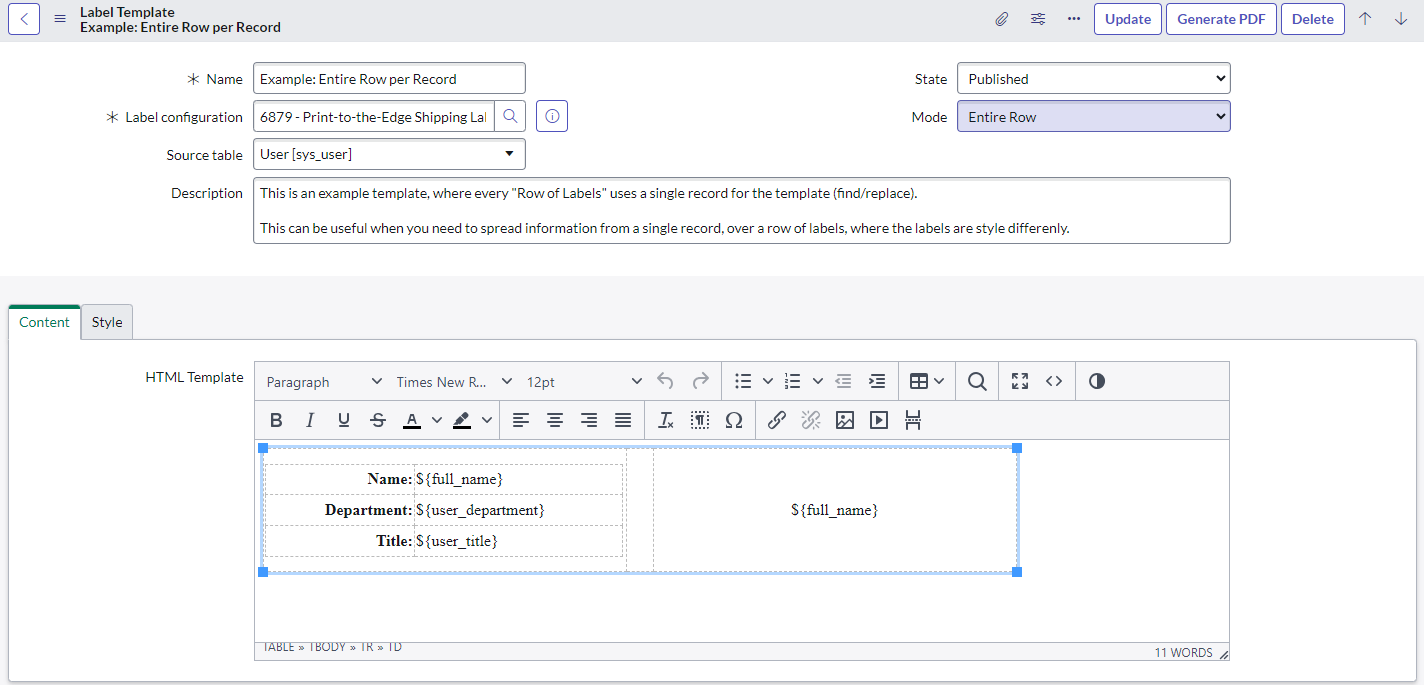
<div><figure><img src="https://content.gitbook.com/content/lZa2jzKHQRa1v2nhYGau/blobs/SiUePGufTjc2adaEgJy5/Label%20Template%20Form.png" alt=""><figcaption><p>Label Template</p></figcaption></figure> <figure><img src="https://593524569-files.gitbook.io/~/files/v0/b/gitbook-x-prod.appspot.com/o/spaces%2FlZa2jzKHQRa1v2nhYGau%2Fuploads%2FW77LNzJWyazn4KIFIawB%2F228.jpg?alt=media&amp;token=61c764c9-97f6-4cb2-9cd5-0aa7fc7867eb" alt=""><figcaption><p>Included Example Templates</p></figcaption></figure></div>

{% hint style="info" %}
For **Single Cell/Label** templates, click **Design Label** in the form header to build and preview the template visually. See [**Label Designer**](/asset-tag-maker/technical-docs/building-a-label-template/creating-labels/label-designer.md) for the complete workflow. **Template HTML** is generated and read-only for designer-managed templates. Continue using **Template HTML** directly for legacy templates you do not import and for **Entire Row** templates.
{% endhint %}

* **Label**: The [**Label Config**](/asset-tag-maker/technical-docs/building-a-label-template/creating-labels/label-configuration.md) you wish to use for this template
* **Source table**: The table to be used as the primary data source for dynamic data included in your PDF of labels.
* **State**: State of the label.
* **Mode**: Options for how many labels are created for each record in the [**Data Source**](/asset-tag-maker/technical-docs/building-a-label-template/data-sources.md)
  * **Single Cell/Label**: A single label per record
  * **Entire Row**: An entire row of labels per record
* **Advanced styling**: Enable/disable an 'Advanced Styling' CSS field to allow custom CSS to be applied to the entire page of labels.
* **Template HTML**: The HTML used to render the label. Label Designer generates this field for designer-managed templates. Use the HTML editor directly for legacy and **Entire Row** templates.

  <div data-gb-custom-block data-tag="hint" data-style="info" class="hint hint-info"><h3>Content for the Template HTML</h3><p>The <strong>Template HTML</strong> field can include static, dynamic, and programmatic content. To include dynamic or programmatic content, you will reference an associated <a href="/asset-tag-maker/technical-docs/building-a-label-template/merge-maps.md">PDF Template Merge Map</a> record. When doing so, simply use ${handlebar} brackets around the 'Merge key' value for the desired Merge Map.</p><p>For example, if you have a Merge Map record with a 'Merge key' of 'FIRST_NAME', you can include that dynamic value in your <strong>Template HTML</strong> with <em>${FIRST_NAME}</em>.</p></div>
